

Save vs. publish
Saving (from Build an agent playbook) keeps a playbook private to you as a draft. Publishing is the deliberate step that makes it available to others and unlocks deployment - either as a voice agent on a phone number or as an API endpoint. Until you publish, the top bar showsDraft - not yet published.
This page starts after you have a working, saved playbook. If you have not saved
yet - or want to move a playbook in or out as a file - see
Save, import & export on the Build page.
Step 1 - Publish and set visibility
Hit Publish in the top bar. You pick one of three visibility levels, shown by a badge on the playbook:
You can change visibility at any time; the badge updates and the setting is
saved server-side.
Step 2 - Share by link
For an Unlisted or Public playbook, open Share to copy a link. Anyone who opens it lands in the Playground with your agent loaded and can talk to it - no account needed for the trial.Rotate a leaked link
If a link gets out, use Regenerate in the Share dialog to revoke the old
link and issue a new one. Old links stop working immediately.
Shared access is view + run, cross-tenant and project-scoped. Someone opening
your link can test the agent and clone it; they cannot edit your original.
Step 3 - Let others build on it (clone)
Anyone viewing a shared or public playbook can Clone & edit to get their own private copy. It is the fastest way to hand a teammate a working starting point - they clone, tweak, and publish their own version without touching yours.Step 4 - Deploy
Publishing opens the deploy drawer, which offers two ways to ship the same agent. Pick the one that matches how callers will reach it:Deploy as Voice Agent
Put it on a real phone number. Choose a number and the drawer wires up a
speech pipe for you - inbound callers reach the agent immediately.
Deploy as Endpoint
Turn it into a callable API with an API key, so your own backend drives
the agent. No phone number involved.
AgentRunner you tested in
Preview - nothing is re-implemented on the way to production.
Deploy as Voice Agent
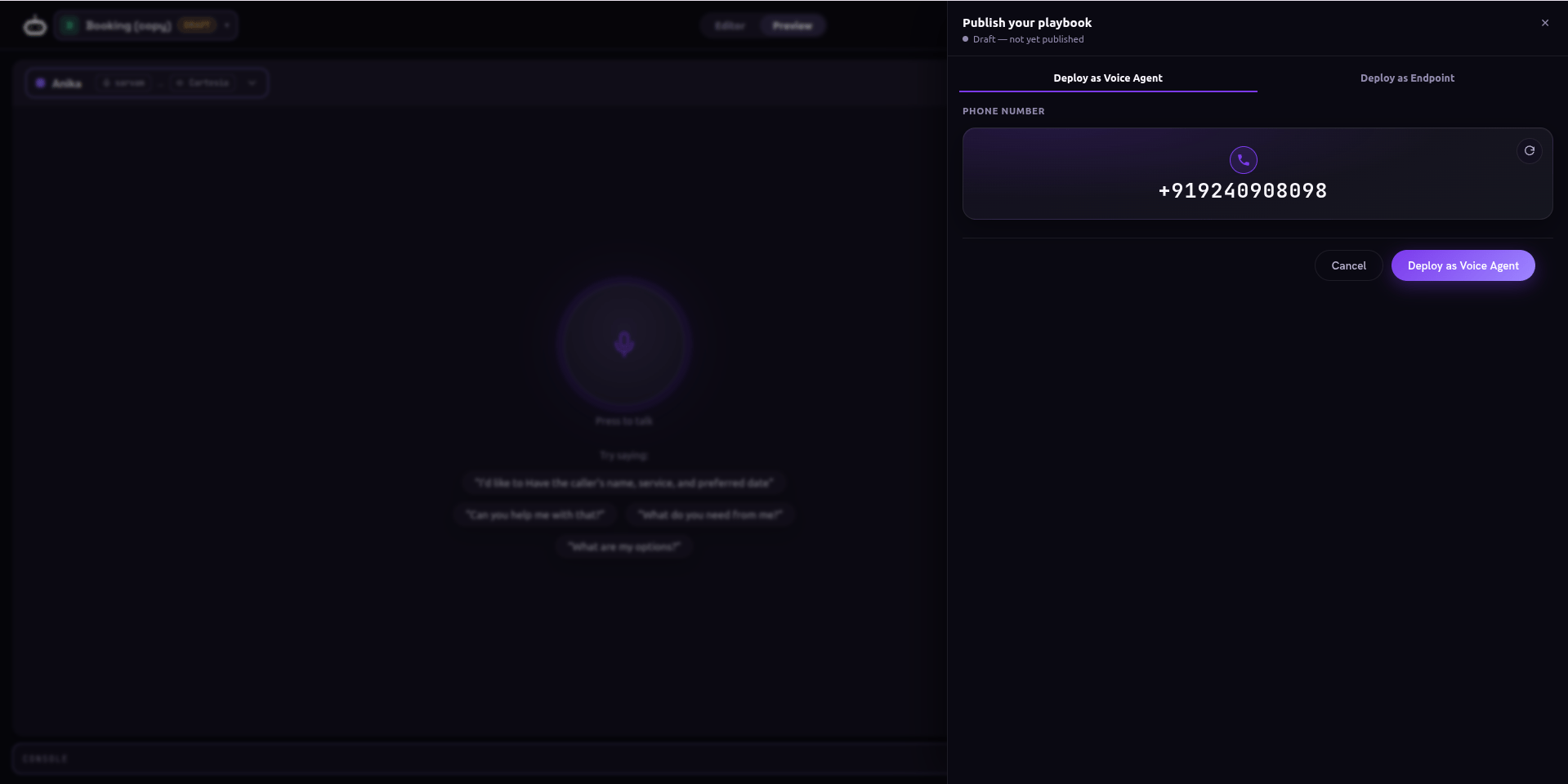
Deploy as Voice Agent - pick a number from the picker, then deploy
1
Pick a number
The drawer loads your available numbers in a picker - use the rotate control
to cycle through them. Select one (or choose No number to deploy without
assigning one yet).
2
Confirm
On deploy the platform assigns the number and provisions a speech pipe
behind it - you get a “Deployed!” confirmation with the wired pipe.
3
Call it
Dial the number, or dispatch an outbound call to it. The agent answers with
the playbook you tested.
Need a number first, or want to manage pipes by hand? See
Numbers and Speech Pipes - the
Voice Agent deploy is the one-click version of that wiring.
Deploy as Endpoint
Turns the agent into an OpenAI-compatiblechat/completions API. The drawer
shows your endpoint, the model (your playbook id), and a ready-to-run
snippet in cURL, Python, JavaScript, and Go.
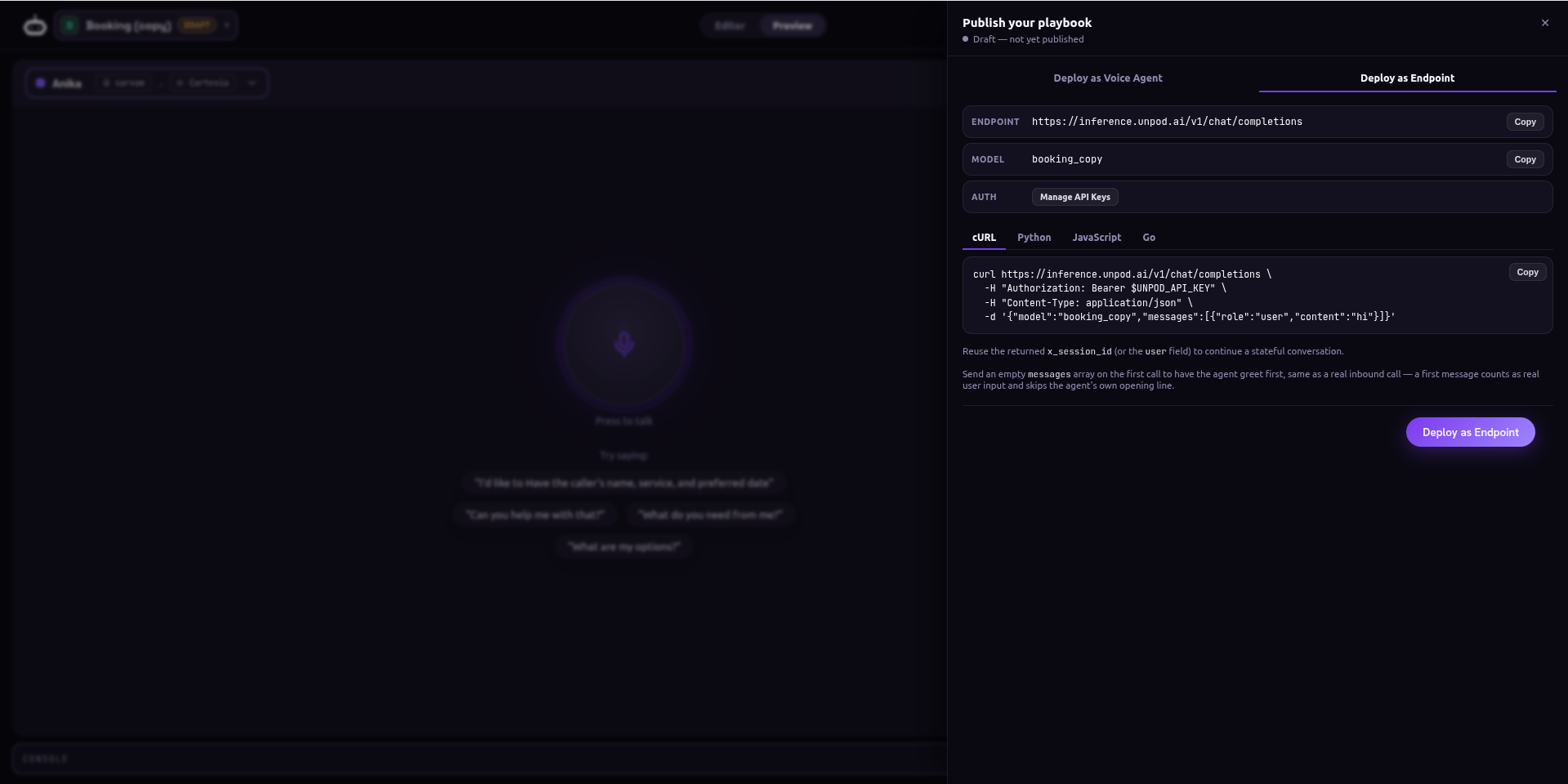
Deploy as Endpoint - endpoint, model id, Manage API Keys, and per-language snippets
1
Deploy & create a key
Hit Deploy as Endpoint, then Manage API Keys to mint one. Copy it now -
treat it like a password. Rotate it any time if it leaks.
2
Copy the snippet
Pick your language tab. Each snippet is pre-filled with your endpoint, your
model id, and the Authorization: Bearer $UNPOD_API_KEY header.3
Call it from your app
Point any OpenAI SDK at the base URL. The agent runs the exact playbook you
tested in Preview.
Example
Full Chat API reference
Headers, request body, stateful sessions via
user, and cURL / Python /
JavaScript / Go examples.Bring your own key (BYOK)
If you want calls billed to your provider account instead of the Playground wallet, open the BYOK panel and paste keys for your LLM and speech providers (OpenAI, Deepgram, Cartesia, ElevenLabs, …). When set, the Playground routes through your keys; Clear reverts to the shared wallet.Guest and trial usage draws on a metered wallet - you will see a balance chip and
an “out of minutes” prompt when it runs low. BYOK sidesteps that by using your
own provider quota.