> ## Documentation Index
> Fetch the complete documentation index at: https://docs.unpod.ai/llms.txt
> Use this file to discover all available pages before exploring further.
# LiveKit (Dashboard)
> Connect LiveKit to Unpod with no code - connect a number in the Unpod Studio, then point a LiveKit SIP trunk at it for low-latency streaming.
The **no-code** path. Connect your number in the Unpod Studio to get an **Unpod SIP
trunk** (one endpoint, inbound + outbound), then create matching trunks in the
**LiveKit Cloud** console using those credentials. Prefer code? See the
[API guide](/telephony/integrations/livekit/api).
**You need:** an Unpod number on a Bridge, a **LiveKit Cloud** project, and a
**LiveKit agent** to answer inbound calls. The Unpod trunk carries both inbound and
outbound - no separate provider setup.
Keep your LiveKit API Secret and SIP trunk credentials private - never paste them into
shared docs or screenshots.
## Part 1 - Get the LiveKit SIP URI
In the **LiveKit Cloud** dashboard, open **Settings → Project** (General) and copy the
**SIP URI** - it looks like `sip:.sip.livekit.cloud`. You paste this into the
Unpod trunk next so outbound calls reach LiveKit.
## Part 2 - Connect the number in Unpod
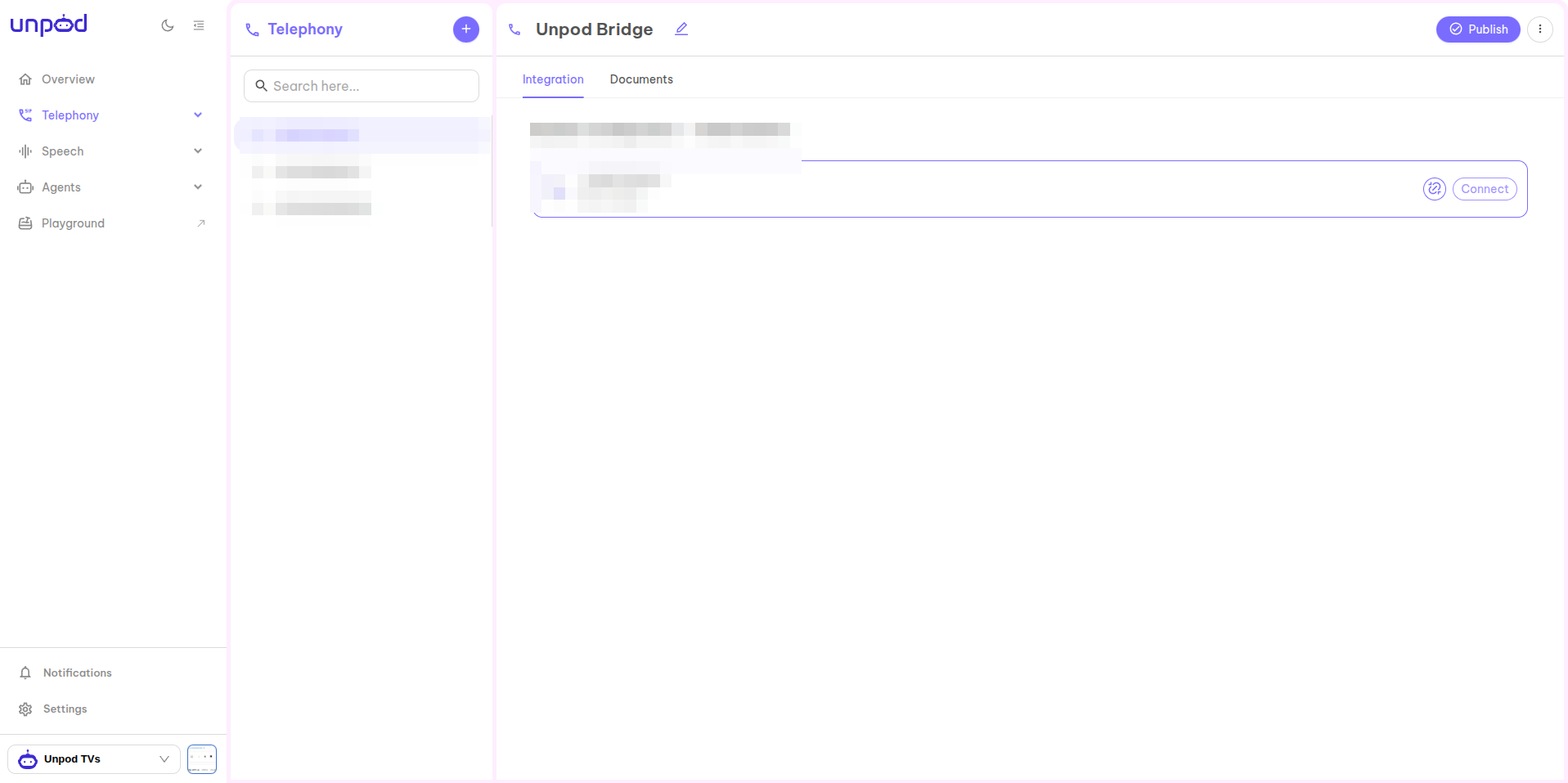
In **Telephony**, select your number (shown as **Not Linked**) and click **Connect**
to set up its SIP trunk.
 In the trunk panel, set the **Trunk Origin Endpoint Details**:
* **SIP URI / address** - paste the **LiveKit SIP URI** from Part 1
(e.g. `sip:.sip.livekit.cloud`).
* **Port** `5060`, **Transport** `TCP` (or `UDP` / `TLS` to match LiveKit).
* **Allowed IPs / CIDR** - optional source allow-list.
Click **Save**. The number then shows **Linked · Unpod SIP Trunk**.
In the trunk panel, set the **Trunk Origin Endpoint Details**:
* **SIP URI / address** - paste the **LiveKit SIP URI** from Part 1
(e.g. `sip:.sip.livekit.cloud`).
* **Port** `5060`, **Transport** `TCP` (or `UDP` / `TLS` to match LiveKit).
* **Allowed IPs / CIDR** - optional source allow-list.
Click **Save**. The number then shows **Linked · Unpod SIP Trunk**.
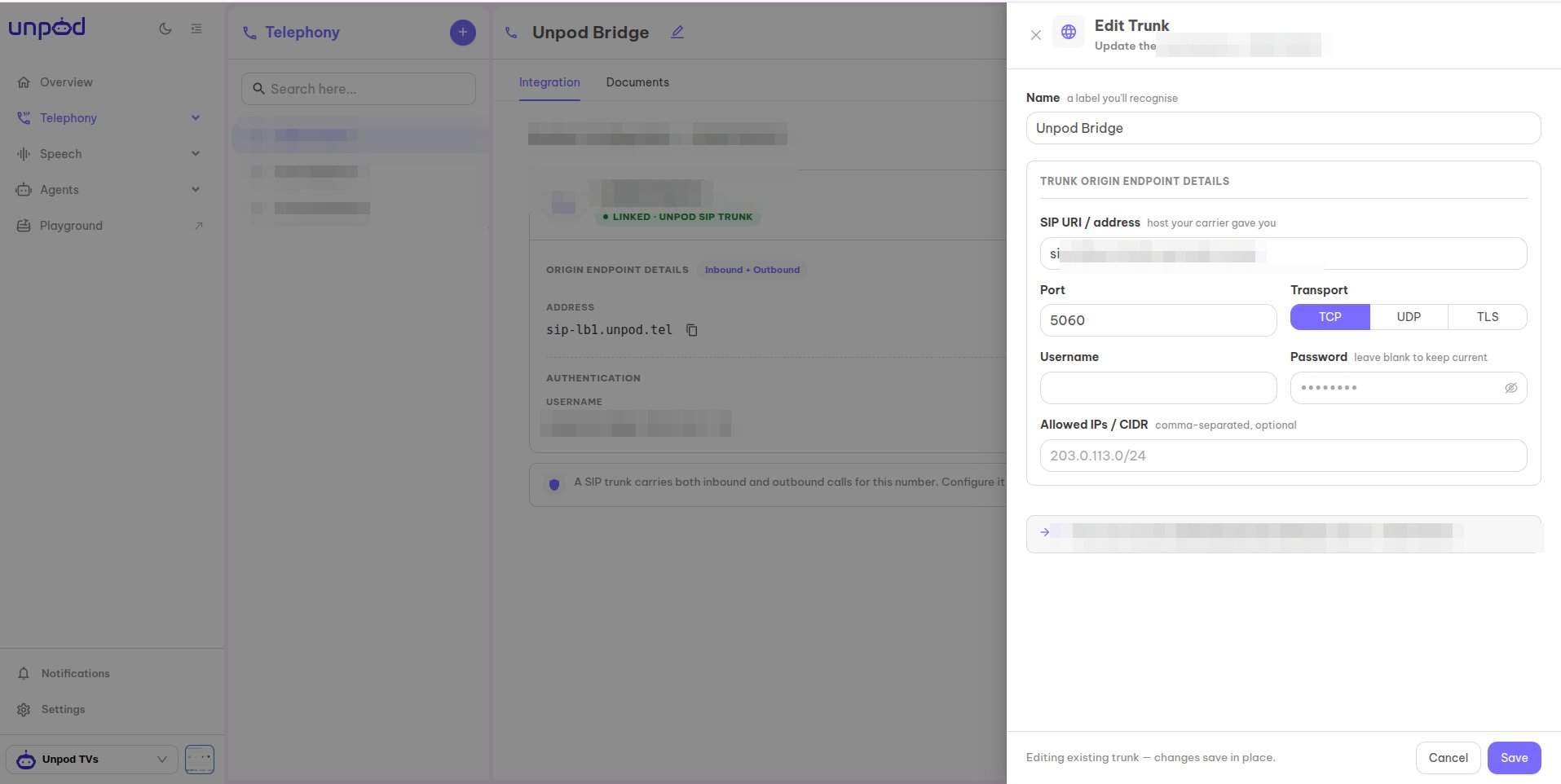 Under **Origin Endpoint Details** copy these - you'll use them in LiveKit next:
* **Address** - e.g. `sip-lb1.unpod.tel`
* **Port** / **Protocol** - `5060` / `UDP`
* **Username** and **Password** (under **Authentication**)
Under **Origin Endpoint Details** copy these - you'll use them in LiveKit next:
* **Address** - e.g. `sip-lb1.unpod.tel`
* **Port** / **Protocol** - `5060` / `UDP`
* **Username** and **Password** (under **Authentication**)
 ## Part 3 - Create the trunks in LiveKit
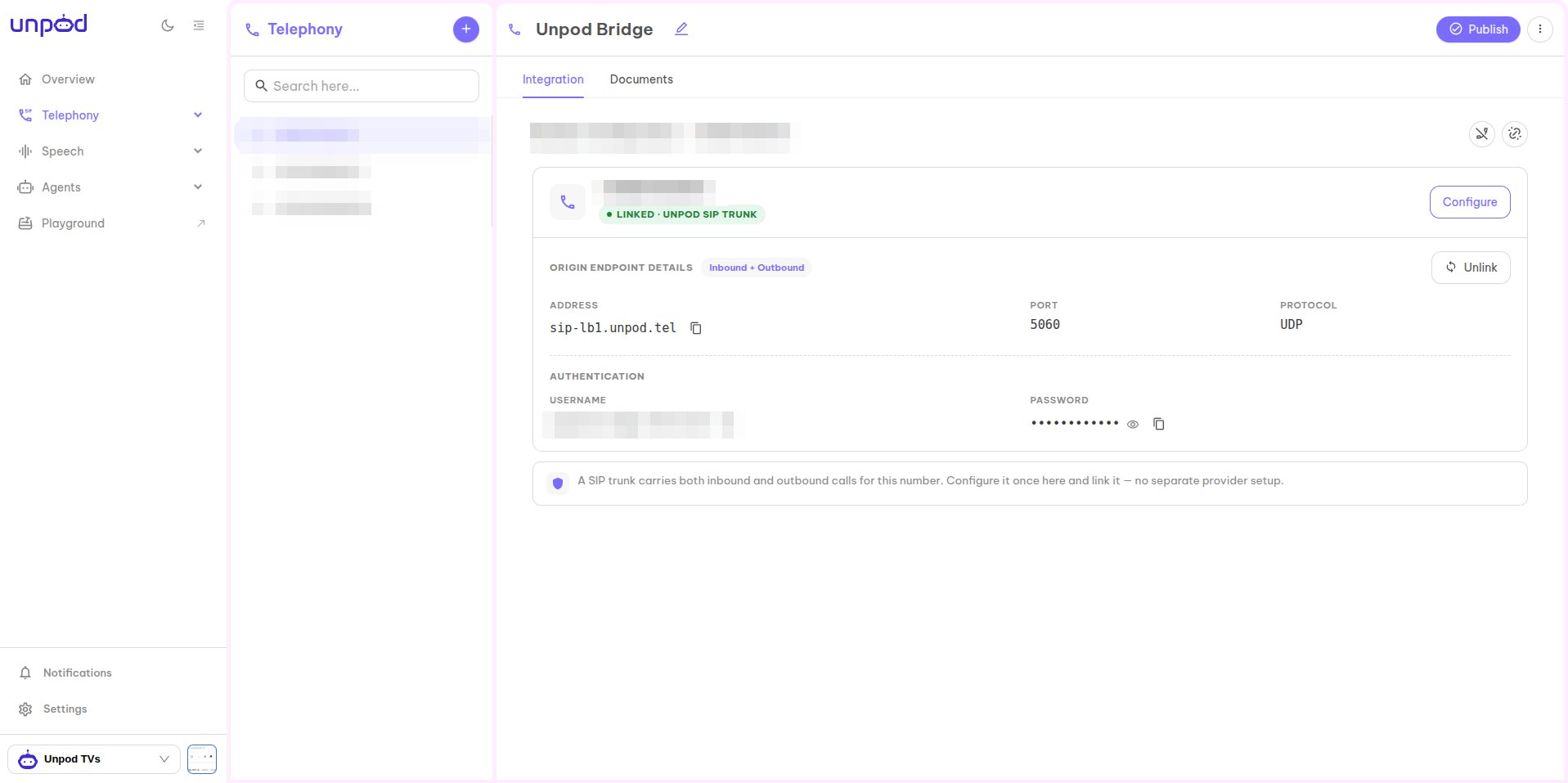
In the LiveKit console, go to **Telephony → SIP trunks** and click **Create new trunk**.
Fill the **Trunk details** form (or use the **JSON editor**). Create two trunks using the
Unpod values from Part 2.
Set **Trunk direction** to **Inbound**, then:
* **Trunk name** - a label.
* **Numbers** - your Unpod phone number(s) in E.164 (comma-separated). Leave empty to accept any.
* **Allowed addresses** - restrict to trusted IPs, or `0.0.0.0/0` to allow all (while testing).
## Part 3 - Create the trunks in LiveKit
In the LiveKit console, go to **Telephony → SIP trunks** and click **Create new trunk**.
Fill the **Trunk details** form (or use the **JSON editor**). Create two trunks using the
Unpod values from Part 2.
Set **Trunk direction** to **Inbound**, then:
* **Trunk name** - a label.
* **Numbers** - your Unpod phone number(s) in E.164 (comma-separated). Leave empty to accept any.
* **Allowed addresses** - restrict to trusted IPs, or `0.0.0.0/0` to allow all (while testing).
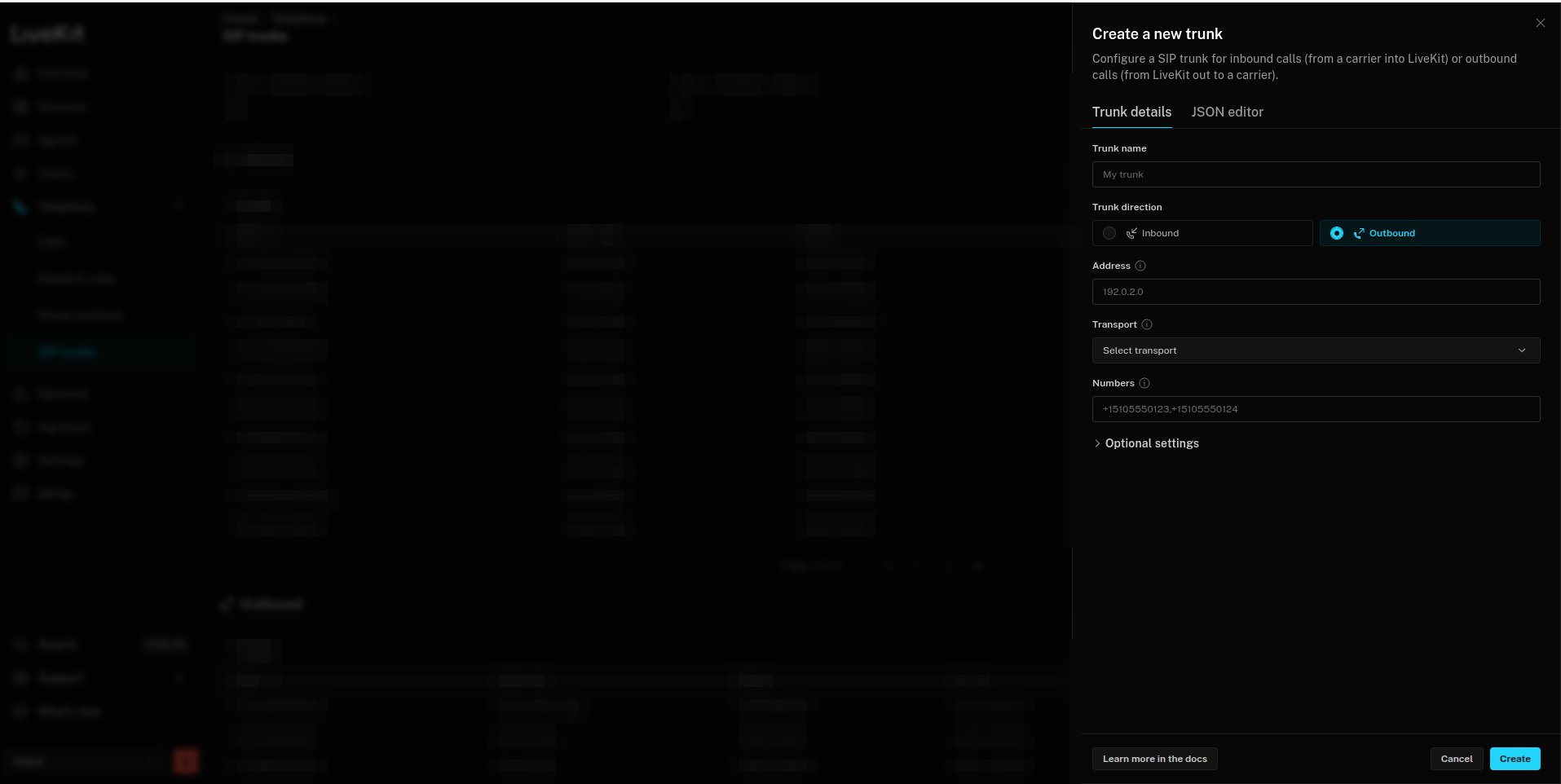
 Set **Trunk direction** to **Outbound**, then map the Unpod values:
* **Trunk name** - a label.
* **Address** - Unpod **Address** (e.g. `sip-lb1.unpod.tel`).
* **Transport** - `TCP` (match your trunk).
* **Numbers** - your Unpod phone number(s).
Under **Optional settings**, add the **Auth username / password** from the Unpod origin endpoint.
Set **Trunk direction** to **Outbound**, then map the Unpod values:
* **Trunk name** - a label.
* **Address** - Unpod **Address** (e.g. `sip-lb1.unpod.tel`).
* **Transport** - `TCP` (match your trunk).
* **Numbers** - your Unpod phone number(s).
Under **Optional settings**, add the **Auth username / password** from the Unpod origin endpoint.
 ## Part 4 - Route inbound to your agent
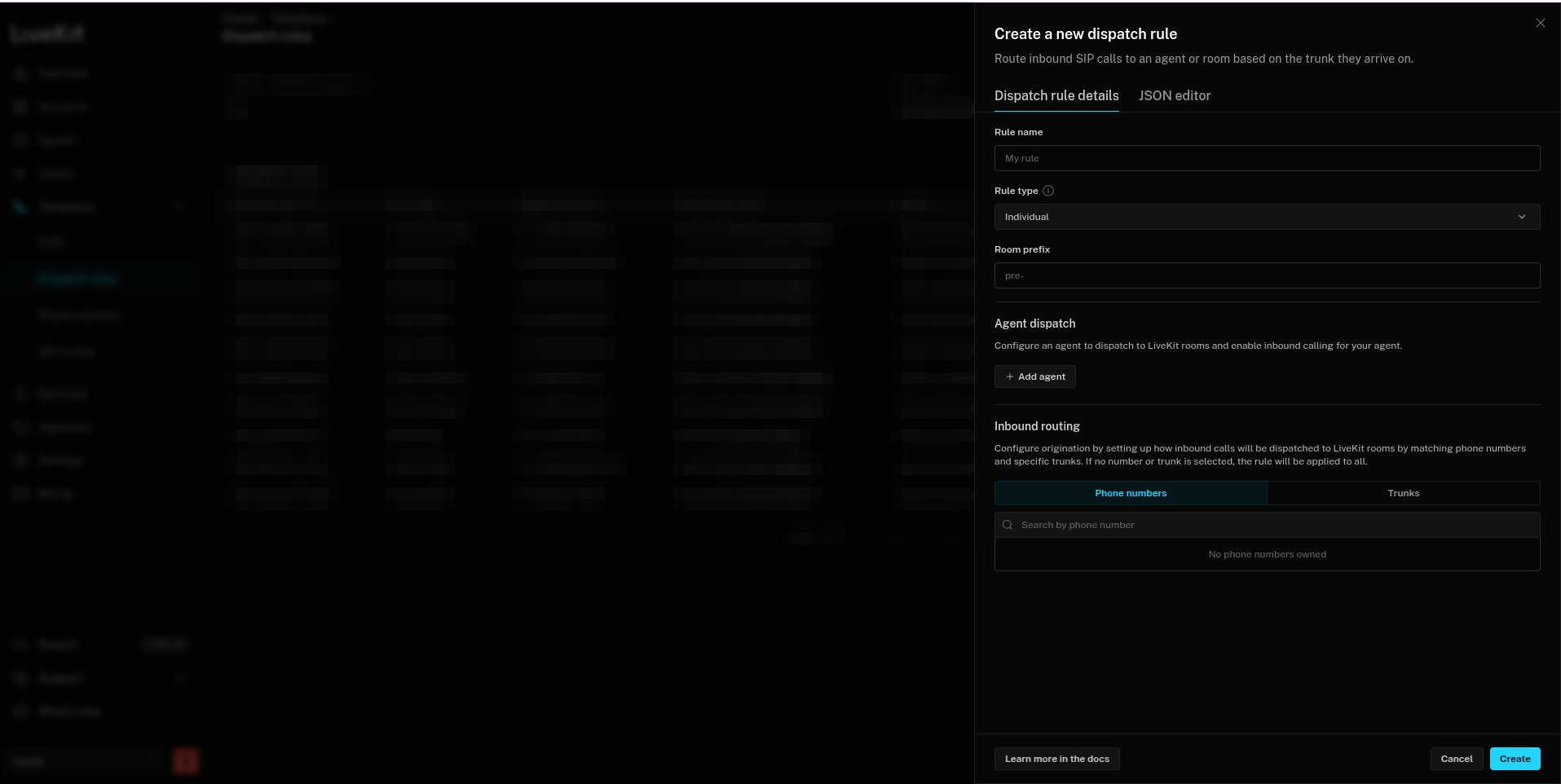
In **Telephony → Dispatch rules**, click **Create new dispatch rule** so inbound calls
land in a room your agent joins:
* **Rule name** - a label.
* **Rule type** - **Individual**.
* **Room prefix** - e.g. `call-`.
* **Agent dispatch** - click **Add agent** and enter your deployed agent name (for explicit dispatch).
* **Inbound routing** - match by **Phone numbers** or **Trunks** (leave unset to apply to all).
## Part 4 - Route inbound to your agent
In **Telephony → Dispatch rules**, click **Create new dispatch rule** so inbound calls
land in a room your agent joins:
* **Rule name** - a label.
* **Rule type** - **Individual**.
* **Room prefix** - e.g. `call-`.
* **Agent dispatch** - click **Add agent** and enter your deployed agent name (for explicit dispatch).
* **Inbound routing** - match by **Phone numbers** or **Trunks** (leave unset to apply to all).
 A single Individual dispatch rule is usually the only routing config you need.
## Publish
Back in the Unpod Studio, click **Publish** to activate the configuration. The number
is then ready for inbound and outbound calls.
## Troubleshooting
| Symptom | Likely cause | Fix |
| --------------------------- | ----------------------------------- | -------------------------------------------------------------------------- |
| LiveKit can't place calls | Wrong outbound address or auth | Re-copy **Address** + **Username/Password** from the Unpod origin endpoint |
| Inbound not arriving | Number not on the inbound trunk | Confirm the Unpod number is in the inbound trunk's `numbers` (E.164) |
| Call connects, agent silent | Dispatch rule / agent name mismatch | Make **Agent Name** match the deployed agent exactly |
| Number not reachable | Config not published | Click **Publish** in the Unpod Studio |
Same flow over the REST API.
Back to the integrations overview.
A single Individual dispatch rule is usually the only routing config you need.
## Publish
Back in the Unpod Studio, click **Publish** to activate the configuration. The number
is then ready for inbound and outbound calls.
## Troubleshooting
| Symptom | Likely cause | Fix |
| --------------------------- | ----------------------------------- | -------------------------------------------------------------------------- |
| LiveKit can't place calls | Wrong outbound address or auth | Re-copy **Address** + **Username/Password** from the Unpod origin endpoint |
| Inbound not arriving | Number not on the inbound trunk | Confirm the Unpod number is in the inbound trunk's `numbers` (E.164) |
| Call connects, agent silent | Dispatch rule / agent name mismatch | Make **Agent Name** match the deployed agent exactly |
| Number not reachable | Config not published | Click **Publish** in the Unpod Studio |
Same flow over the REST API.
Back to the integrations overview.