> ## Documentation Index
> Fetch the complete documentation index at: https://docs.unpod.ai/llms.txt
> Use this file to discover all available pages before exploring further.
# Test by voice
> The Preview tab is a real voice call in your browser. Press to talk, speak like a caller, and watch the transcript, the live checkpoint, and the metrics - served by the same runtime a phone call uses.
## Preview is the test
There is no separate "test mode" and no phone number needed. The **Preview** tab
runs a live voice session against your current playbook using the same
`AgentRunner` that serves a production call. What you hear here is what a caller
hears.
Your microphone streams up at 16 kHz; the agent's synthesized voice streams back
at 24 kHz. The audio rides a WebSocket bridge; the transcript and checkpoint
arrive on a **separate** side channel, so the transcript stays accurate even when
audio is under load.
## Step 1 - Set the voice and model
The Preview header has the run controls:
Pick the voice the agent speaks in - the same voice a real caller would hear.
Each profile shows its **language**, its **STT + TTS providers**, an estimated
**cost per turn**, and a **WER** (word-error-rate) quality hint.
Choose the LLM the **agent** runs on for this test (separate from the builder
model in the chat). The picker shows speed/cost hints like `GPT-4.1 mini · fast`.
**BYOK** lets you run on your own provider key.
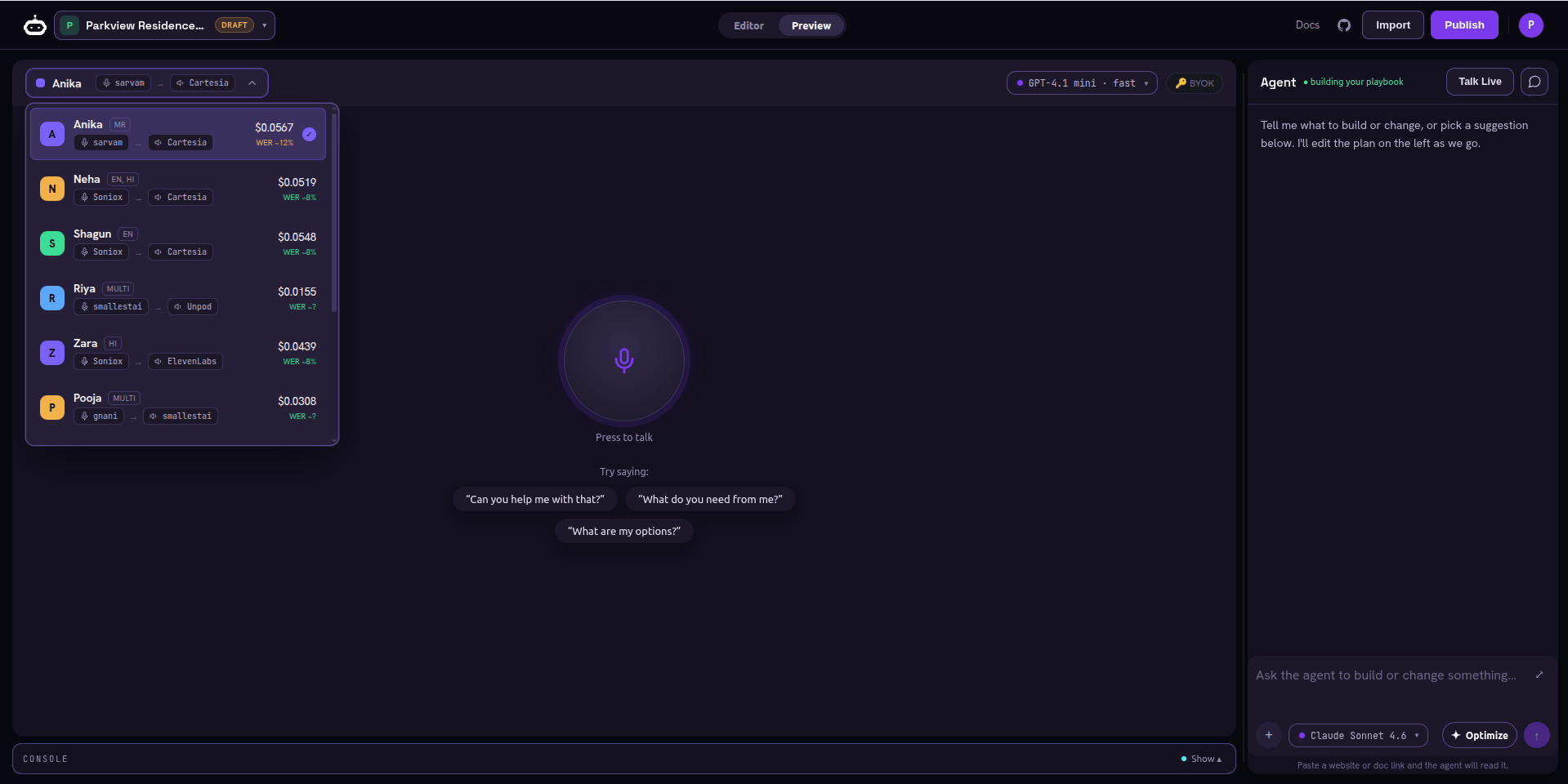 If **Press to talk** is disabled, the header tells you why - usually a missing
voice profile or an unsaved playbook. Pick a voice and save, and the control
unlocks.
## Step 2 - Press to talk
The center of the Preview is a single **Press to talk** control.
You see the orb plus a row of **"Try saying:"** opener chips - example first
lines pulled from your playbook. They are prompts for *you*; they are not
injected into the agent.
Press it, allow the mic, and talk as a caller would. The session connects and
the agent answers in the voice you chose.
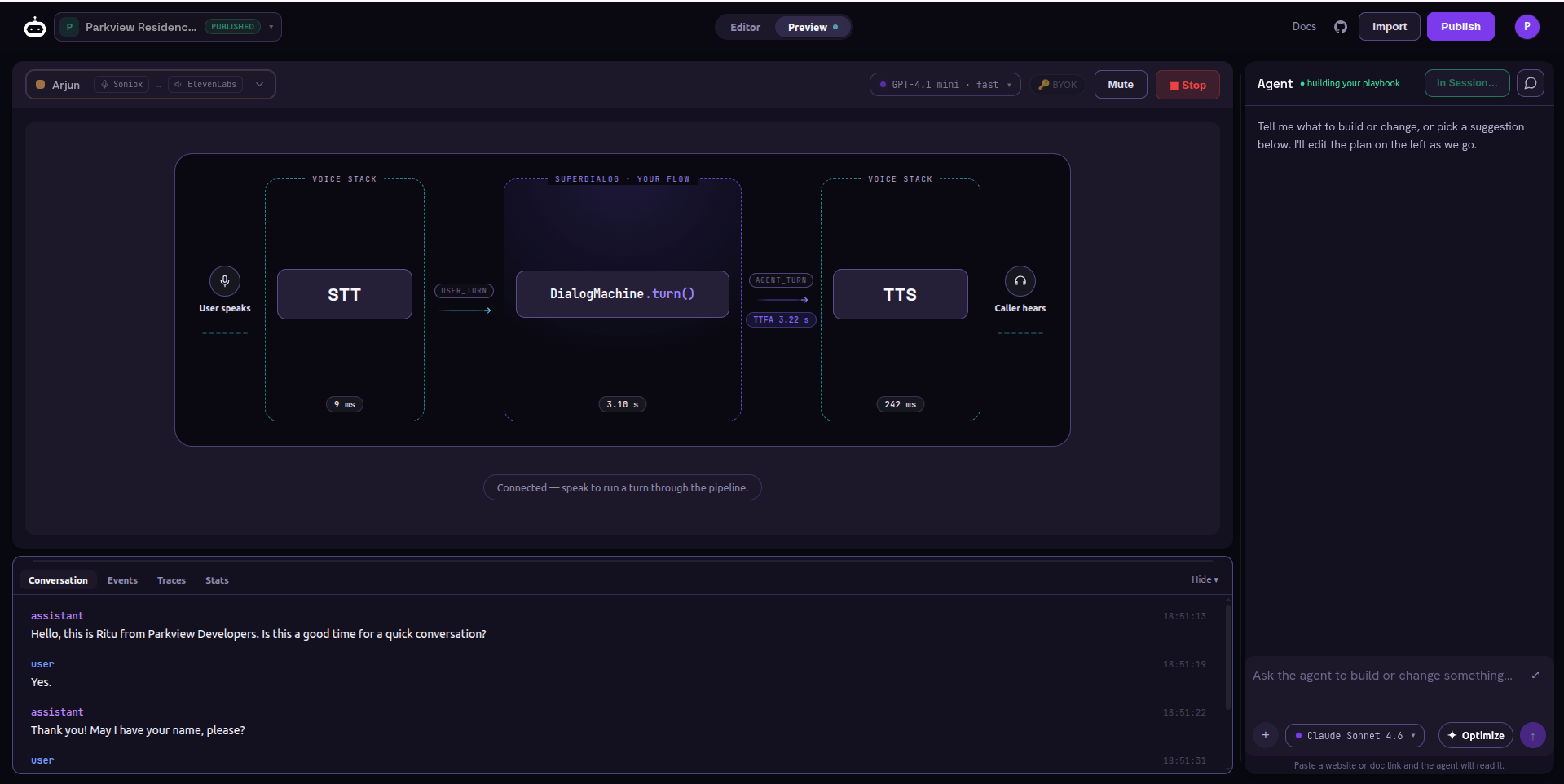
The transcript fills in turn by turn with timestamps, a slim pipeline readout
shows the current stage, and level meters confirm audio is flowing.
If **Press to talk** is disabled, the header tells you why - usually a missing
voice profile or an unsaved playbook. Pick a voice and save, and the control
unlocks.
## Step 2 - Press to talk
The center of the Preview is a single **Press to talk** control.
You see the orb plus a row of **"Try saying:"** opener chips - example first
lines pulled from your playbook. They are prompts for *you*; they are not
injected into the agent.
Press it, allow the mic, and talk as a caller would. The session connects and
the agent answers in the voice you chose.
The transcript fills in turn by turn with timestamps, a slim pipeline readout
shows the current stage, and level meters confirm audio is flowing.
 ## Step 3 - Read the live signal
While you talk, three things tell you whether the playbook works:
| Surface | What it tells you |
| ---------------------- | ---------------------------------------------------------------------------------------- |
| **Transcript** | The exact turns, so you can see where the agent misread you. |
| **Current checkpoint** | Which checkpoint the conversation is in, and whether it advanced when it should have. |
| **Metrics row** | A compact `ttfa · turns · cost` readout - time to first audio, turn count, and run cost. |
### What to actually check
* The **persona and voice** sound right to a caller.
* Checkpoints **advance on the conditions you wrote** (`done_when` /
`advance_when`) - not too early, not too late.
* **Slot collection** works: the agent captures what it needs (order number,
callback) before moving on.
* **Interrupts** fire from any step - saying "goodbye" or "I'm busy" ends the
call gracefully.
## Step 4 - Dig in when something is off
Open the **advanced drawer** below the call for the detailed console: the EVENTS
log, traces, and per-turn LLM calls. Use it to see *why* a checkpoint did not
advance - the Director's judgment and any tool calls are all there.
The console shows the engine's own events and never leaks raw provider errors.
If a turn fails, you get a clean surface here, not a stack trace.
## The tight loop
Testing is meant to feed straight back into authoring - both panes stay mounted,
so a turn in flight survives a tab switch:
e.g. the agent offers 5pm before the caller declines 4pm.
"Only offer 5pm after the caller says 4pm doesn't work." The YAML updates.
Re-test the same path. Repeat until it behaves.
## Next step
When it behaves on the paths you tried by hand, let the optimizer stress it
against many simulated callers.
Run generated personas, score goal completion, and harden the weak spots
automatically.
## Step 3 - Read the live signal
While you talk, three things tell you whether the playbook works:
| Surface | What it tells you |
| ---------------------- | ---------------------------------------------------------------------------------------- |
| **Transcript** | The exact turns, so you can see where the agent misread you. |
| **Current checkpoint** | Which checkpoint the conversation is in, and whether it advanced when it should have. |
| **Metrics row** | A compact `ttfa · turns · cost` readout - time to first audio, turn count, and run cost. |
### What to actually check
* The **persona and voice** sound right to a caller.
* Checkpoints **advance on the conditions you wrote** (`done_when` /
`advance_when`) - not too early, not too late.
* **Slot collection** works: the agent captures what it needs (order number,
callback) before moving on.
* **Interrupts** fire from any step - saying "goodbye" or "I'm busy" ends the
call gracefully.
## Step 4 - Dig in when something is off
Open the **advanced drawer** below the call for the detailed console: the EVENTS
log, traces, and per-turn LLM calls. Use it to see *why* a checkpoint did not
advance - the Director's judgment and any tool calls are all there.
The console shows the engine's own events and never leaks raw provider errors.
If a turn fails, you get a clean surface here, not a stack trace.
## The tight loop
Testing is meant to feed straight back into authoring - both panes stay mounted,
so a turn in flight survives a tab switch:
e.g. the agent offers 5pm before the caller declines 4pm.
"Only offer 5pm after the caller says 4pm doesn't work." The YAML updates.
Re-test the same path. Repeat until it behaves.
## Next step
When it behaves on the paths you tried by hand, let the optimizer stress it
against many simulated callers.
Run generated personas, score goal completion, and harden the weak spots
automatically.