> ## Documentation Index
> Fetch the complete documentation index at: https://docs.unpod.ai/llms.txt
> Use this file to discover all available pages before exploring further.
# Publish & share
> A saved playbook is private to you. Publishing sets its visibility, hands out a share link, lets others clone it, and unlocks two ways to deploy - as a live voice agent on a number, or as a callable API endpoint.
## Save vs. publish
**Saving** (from [Build an agent playbook](/playbook/build-an-agent)) keeps a playbook
private to you as a draft. **Publishing** is the deliberate step that makes it
available to others and unlocks deployment - either **as a voice agent on a phone
number** or **as an API endpoint**. Until you publish, the top bar shows
`Draft — not yet published`.
This page starts after you have a working, saved playbook. If you have not saved
yet - or want to move a playbook in or out as a file - see
[Save, import & export](/playbook/build-an-agent#step-4-save-import-export) on the Build page.
Publishing changes who can see and run your agent. Read the visibility levels
below before you publish - "Public" lists the agent in a gallery anyone can find.
## Step 1 - Publish and set visibility
Hit **Publish** in the top bar. You pick one of three visibility levels, shown by
a badge on the playbook:
| Visibility | Who can reach it |
| ------------ | ----------------------------------------------------------------------- |
| **Private** | Only you. |
| **Unlisted** | Anyone with the link can open and test it - not discoverable otherwise. |
| **Public** | Listed in the public gallery for anyone to find and test. |
You can change visibility at any time; the badge updates and the setting is
saved server-side.
## Step 2 - Share by link
For an **Unlisted** or **Public** playbook, open **Share** to copy a link. Anyone
who opens it lands in the Playground with your agent loaded and can talk to it -
no account needed for the trial.
If a link gets out, use **Regenerate** in the Share dialog to revoke the old
link and issue a new one. Old links stop working immediately.
Shared access is **view + run**, cross-tenant and project-scoped. Someone opening
your link can test the agent and clone it; they cannot edit your original.
## Step 3 - Let others build on it (clone)
Anyone viewing a shared or public playbook can **Clone & edit** to get their own
private copy. It is the fastest way to hand a teammate a working starting point -
they clone, tweak, and publish their own version without touching yours.
## Step 4 - Deploy
Publishing opens the **deploy drawer**, which offers **two ways to ship** the
same agent. Pick the one that matches how callers will reach it:
Put it on a **real phone number**. Choose a number and the drawer wires up a
speech pipe for you - inbound callers reach the agent immediately.
Turn it into a **callable API** with an API key, so your own backend drives
the agent. No phone number involved.
Both run the **same published playbook and the same `AgentRunner`** you tested in
Preview - nothing is re-implemented on the way to production.
### Deploy as Voice Agent
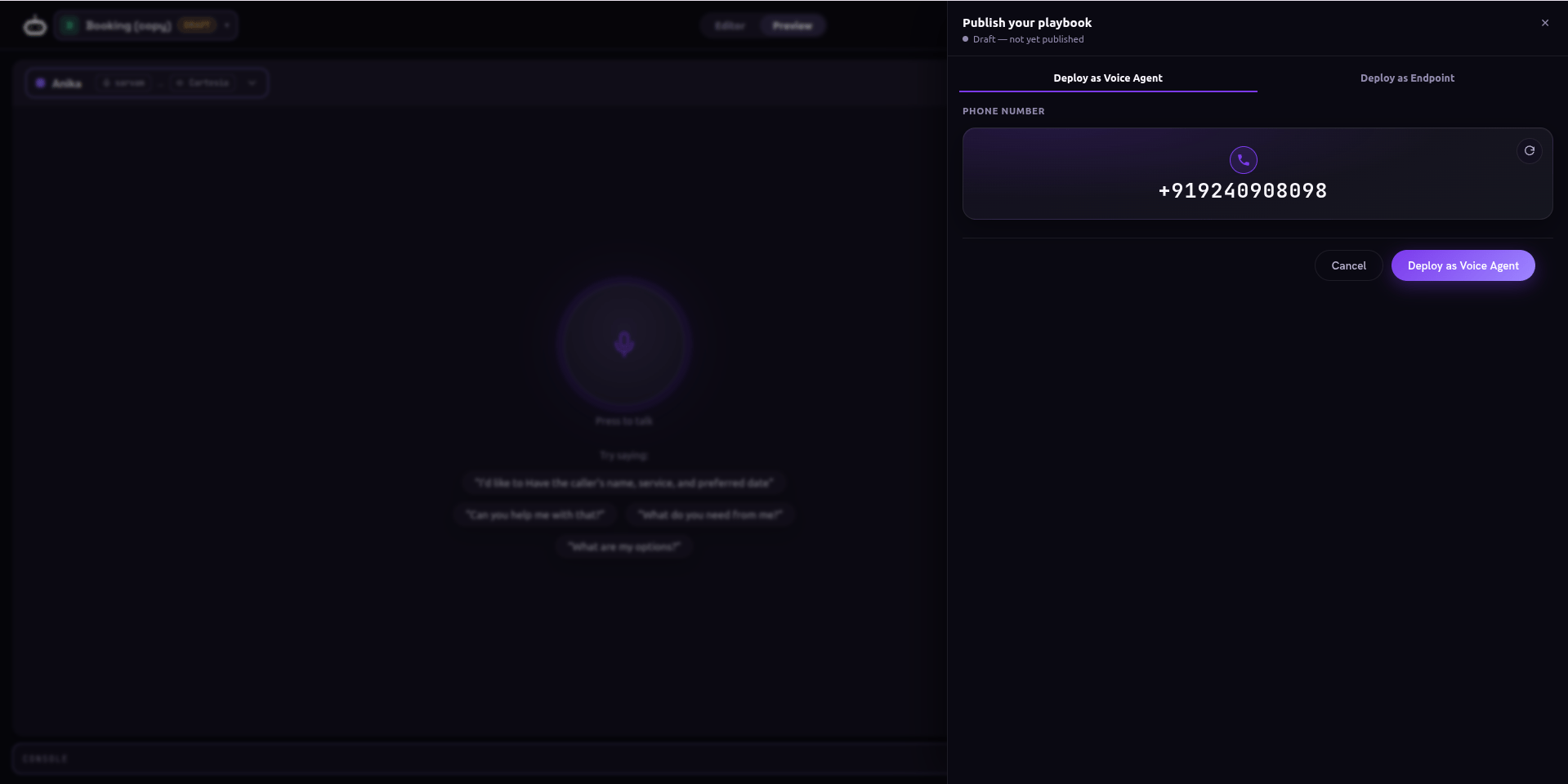 The drawer loads your available numbers in a picker - use the rotate control
to cycle through them. Select one (or choose **No number** to deploy without
assigning one yet).
On deploy the platform assigns the number and provisions a **speech pipe**
behind it - you get a "Deployed!" confirmation with the wired pipe.
Dial the number, or dispatch an outbound call to it. The agent answers with
the playbook you tested.
Need a number first, or want to manage pipes by hand? See
[Numbers](/speech-stack/numbers) and [Speech Pipes](/speech-stack/pipes) - the
Voice Agent deploy is the one-click version of that wiring.
### Deploy as Endpoint
Turns the agent into an **OpenAI-compatible** `chat/completions` API. The drawer
shows your **endpoint**, the **model** (your playbook id), and a ready-to-run
snippet in cURL, Python, JavaScript, and Go.
The drawer loads your available numbers in a picker - use the rotate control
to cycle through them. Select one (or choose **No number** to deploy without
assigning one yet).
On deploy the platform assigns the number and provisions a **speech pipe**
behind it - you get a "Deployed!" confirmation with the wired pipe.
Dial the number, or dispatch an outbound call to it. The agent answers with
the playbook you tested.
Need a number first, or want to manage pipes by hand? See
[Numbers](/speech-stack/numbers) and [Speech Pipes](/speech-stack/pipes) - the
Voice Agent deploy is the one-click version of that wiring.
### Deploy as Endpoint
Turns the agent into an **OpenAI-compatible** `chat/completions` API. The drawer
shows your **endpoint**, the **model** (your playbook id), and a ready-to-run
snippet in cURL, Python, JavaScript, and Go.
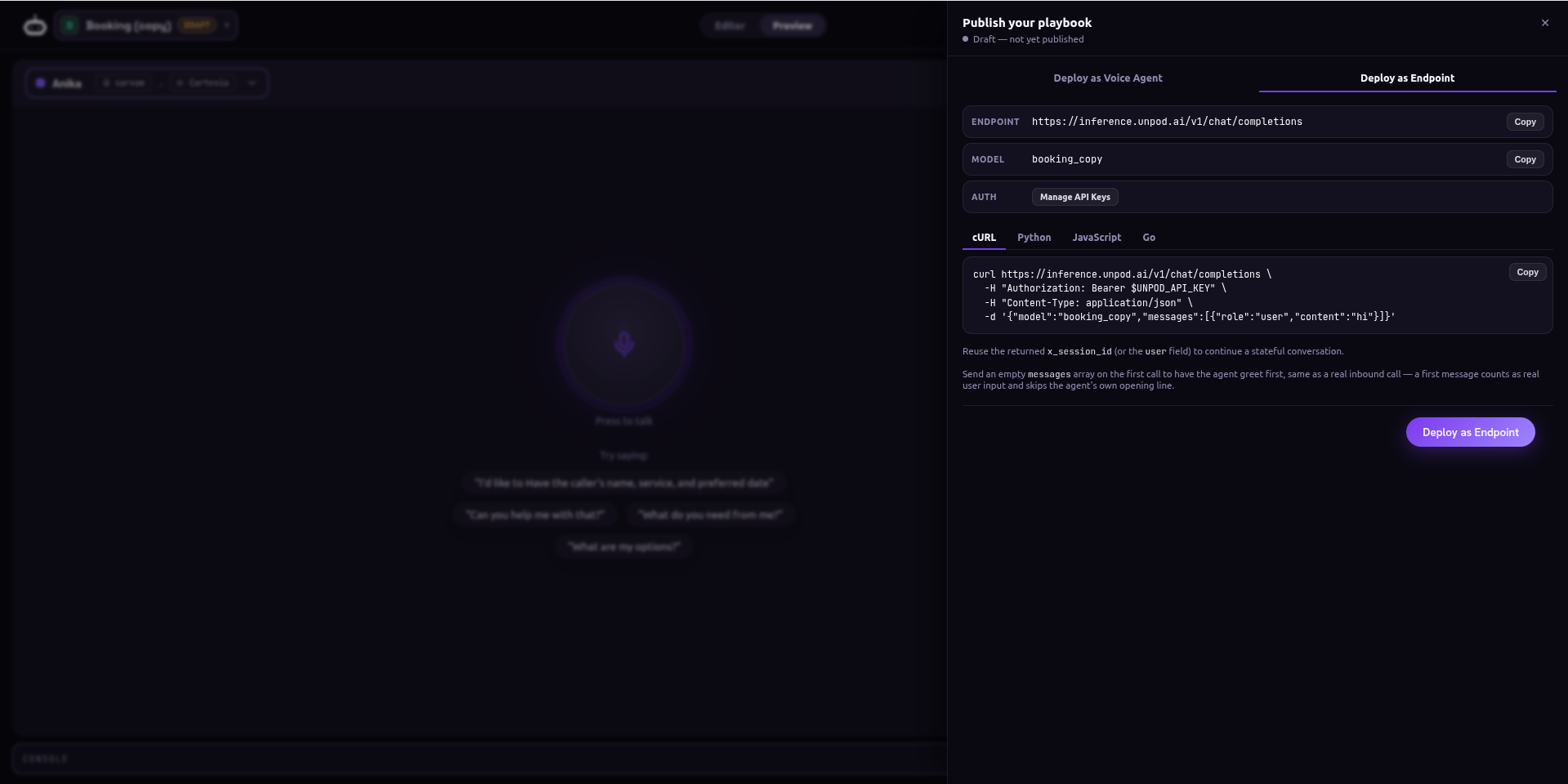 Hit **Deploy as Endpoint**, then **Manage API Keys** to mint one. Copy it now -
treat it like a password. Rotate it any time if it leaks.
Pick your language tab. Each snippet is pre-filled with your endpoint, your
`model` id, and the `Authorization: Bearer $UNPOD_API_KEY` header.
Point any OpenAI SDK at the base URL. The agent runs the exact playbook you
tested in Preview.
```bash Example theme={null}
curl https://inference.unpod.ai/v1/chat/completions \
-H "Authorization: Bearer $UNPOD_API_KEY" \
-H "Content-Type: application/json" \
-d '{"model":"public:PB_7ZRMzCA1ojQ9LlcK","messages":[{"role":"user","content":"hi"}]}'
```
API keys carry your account's access. Store them in a secret manager or
environment variable (`UNPOD_API_KEY`), never in client-side code or a committed
file. Revoke and regenerate immediately if one is exposed.
Stateful sessions (`x_session_id` / `user`), the "empty messages = agent greets
first" rule, and full Python / JS / Go examples.
## Bring your own key (BYOK)
If you want calls billed to **your** provider account instead of the Playground
wallet, open the **BYOK** panel and paste keys for your LLM and speech providers
(OpenAI, Deepgram, Cartesia, ElevenLabs, ...). When set, the Playground routes
through your keys; **Clear** reverts to the shared wallet.
Guest and trial usage draws on a metered wallet - you will see a balance chip and
an "out of minutes" prompt when it runs low. BYOK sidesteps that by using your
own provider quota.
## Drive the agent from your own code
Once deployed as an endpoint, call the agent over the OpenAI-compatible API -
stateful sessions, greet-first, and Python / JS / Go examples.
Hit **Deploy as Endpoint**, then **Manage API Keys** to mint one. Copy it now -
treat it like a password. Rotate it any time if it leaks.
Pick your language tab. Each snippet is pre-filled with your endpoint, your
`model` id, and the `Authorization: Bearer $UNPOD_API_KEY` header.
Point any OpenAI SDK at the base URL. The agent runs the exact playbook you
tested in Preview.
```bash Example theme={null}
curl https://inference.unpod.ai/v1/chat/completions \
-H "Authorization: Bearer $UNPOD_API_KEY" \
-H "Content-Type: application/json" \
-d '{"model":"public:PB_7ZRMzCA1ojQ9LlcK","messages":[{"role":"user","content":"hi"}]}'
```
API keys carry your account's access. Store them in a secret manager or
environment variable (`UNPOD_API_KEY`), never in client-side code or a committed
file. Revoke and regenerate immediately if one is exposed.
Stateful sessions (`x_session_id` / `user`), the "empty messages = agent greets
first" rule, and full Python / JS / Go examples.
## Bring your own key (BYOK)
If you want calls billed to **your** provider account instead of the Playground
wallet, open the **BYOK** panel and paste keys for your LLM and speech providers
(OpenAI, Deepgram, Cartesia, ElevenLabs, ...). When set, the Playground routes
through your keys; **Clear** reverts to the shared wallet.
Guest and trial usage draws on a metered wallet - you will see a balance chip and
an "out of minutes" prompt when it runs low. BYOK sidesteps that by using your
own provider quota.
## Drive the agent from your own code
Once deployed as an endpoint, call the agent over the OpenAI-compatible API -
stateful sessions, greet-first, and Python / JS / Go examples.