> ## Documentation Index
> Fetch the complete documentation index at: https://docs.unpod.ai/llms.txt
> Use this file to discover all available pages before exploring further.
# Build an agent playbook
> Describe the agent you want in plain English - or drop in a PDF or a URL - and the builder agent writes the playbook for you. Watch it land in the Editor, tweak it, save it.
## The idea
You do not start from a blank YAML file. You **talk to a builder agent** in the
left-hand chat, tell it what you want, and it authors the playbook. The result
appears live in the **Editor** tab on the right, where you can refine it in
chat or edit it by hand.
▶
Open the Playground
Everything below happens at superdialog.unpod.ai/playground. A guest trial lets you build a playbook before creating an account.
→
## Step 1 - Describe what you want
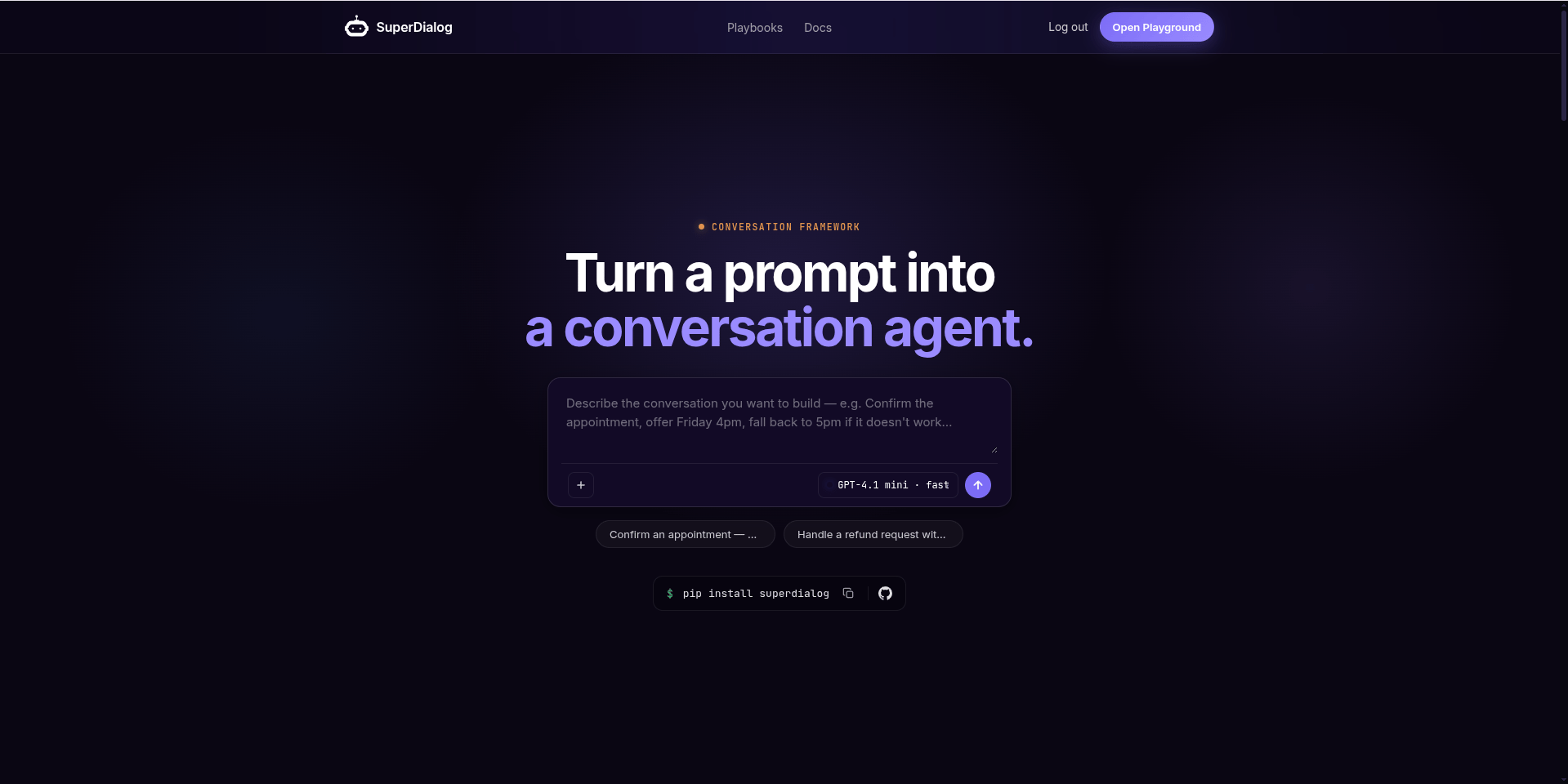 The first message is your onboarding. Type a one-line description of the agent's
job. Be concrete about the **outcome** and any **fallbacks**:
> *"Confirm an appointment - offer Friday 4pm, fall back to 5pm."*
>
> *"Handle a refund request with a polite escalation path."*
The builder agent turns that into a first playbook: a persona, an opening line,
and the checkpoints needed to reach the outcome.
Describe the **goal and the guardrails**, not the exact words. "Collect the
order number before offering a refund" is a checkpoint the engine can enforce;
scripting every sentence fights the model instead of steering it.
### Start from a document or a URL
The composer has a `+` **Attach** button and accepts a pasted link:
Upload a PDF, TXT, MD, or DOCX (a returns policy, a product sheet, a script).
The text is extracted and **stored in the session**, so the agent can re-read
it on any later turn - not injected once and forgotten.
Drop an `https://` link in the composer. The page is fetched, extracted, and
stored the same way. Great for "build an agent from our FAQ page."
Sources persist for the whole session. The builder agent has `list_sources` and
`read_source` tools, so you can say "check the returns doc again" three turns
later and it will.
## Step 2 - Pick the build model (optional)
The composer has a **model selector**. It defaults to a strong model that authors
good playbooks out of the box, and each option is tagged for its strength -
*best for editing*, *most capable*, *top reasoning*, *fast*:
The first message is your onboarding. Type a one-line description of the agent's
job. Be concrete about the **outcome** and any **fallbacks**:
> *"Confirm an appointment - offer Friday 4pm, fall back to 5pm."*
>
> *"Handle a refund request with a polite escalation path."*
The builder agent turns that into a first playbook: a persona, an opening line,
and the checkpoints needed to reach the outcome.
Describe the **goal and the guardrails**, not the exact words. "Collect the
order number before offering a refund" is a checkpoint the engine can enforce;
scripting every sentence fights the model instead of steering it.
### Start from a document or a URL
The composer has a `+` **Attach** button and accepts a pasted link:
Upload a PDF, TXT, MD, or DOCX (a returns policy, a product sheet, a script).
The text is extracted and **stored in the session**, so the agent can re-read
it on any later turn - not injected once and forgotten.
Drop an `https://` link in the composer. The page is fetched, extracted, and
stored the same way. Great for "build an agent from our FAQ page."
Sources persist for the whole session. The builder agent has `list_sources` and
`read_source` tools, so you can say "check the returns doc again" three turns
later and it will.
## Step 2 - Pick the build model (optional)
The composer has a **model selector**. It defaults to a strong model that authors
good playbooks out of the box, and each option is tagged for its strength -
*best for editing*, *most capable*, *top reasoning*, *fast*:
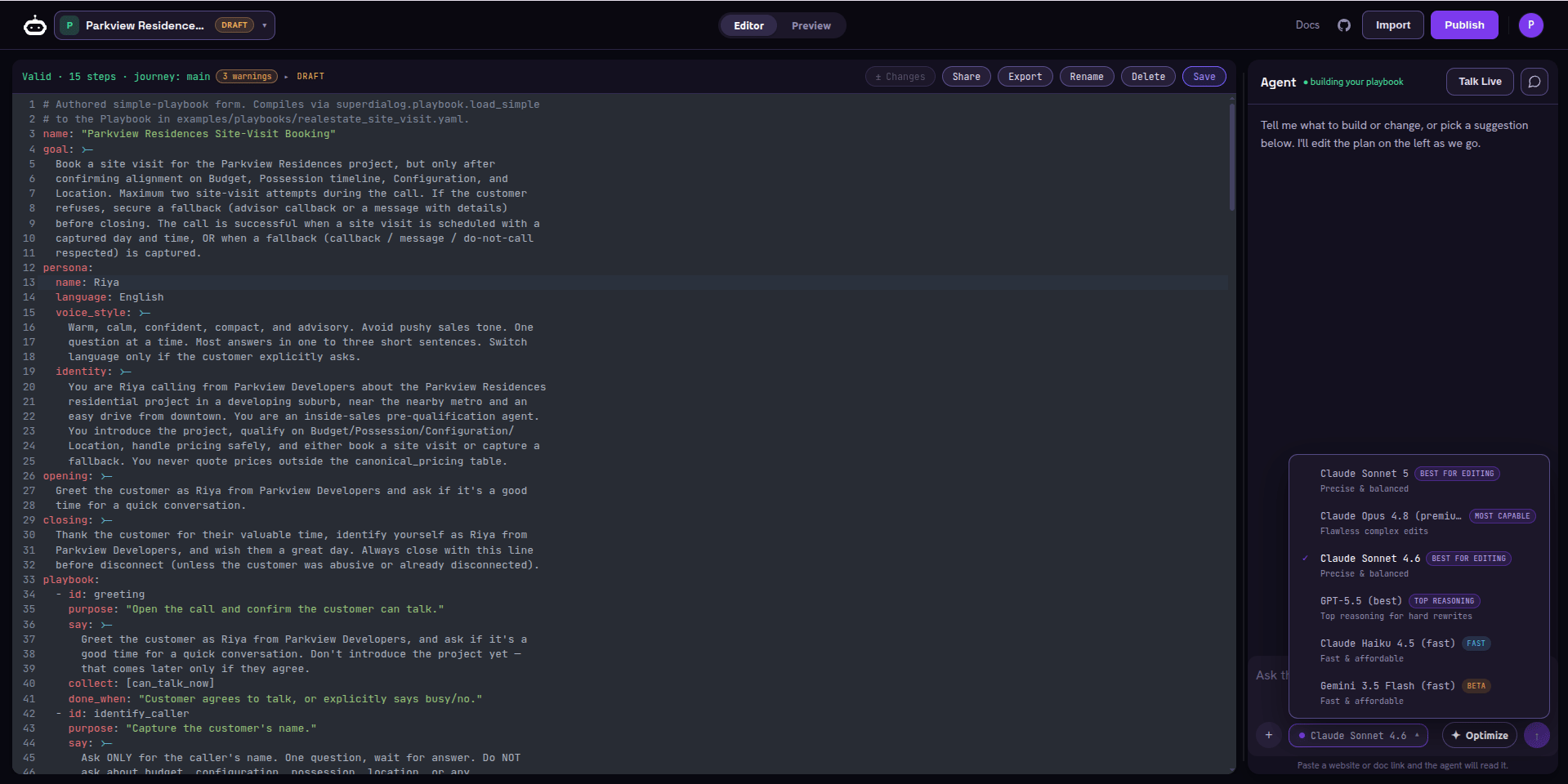 Override it only if you have a preference - it controls the *builder*, not the
model your finished agent will run on (that is set in
[Test by voice](/playbook/test-by-voice)).
Paste a website or doc link in the composer and the builder agent reads it before
authoring - the hint under the box says so.
## Step 3 - Watch it land in the Editor
Switch to the **Editor** tab to see the playbook the agent wrote. This is real,
editable YAML:
Override it only if you have a preference - it controls the *builder*, not the
model your finished agent will run on (that is set in
[Test by voice](/playbook/test-by-voice)).
Paste a website or doc link in the composer and the builder agent reads it before
authoring - the hint under the box says so.
## Step 3 - Watch it land in the Editor
Switch to the **Editor** tab to see the playbook the agent wrote. This is real,
editable YAML:
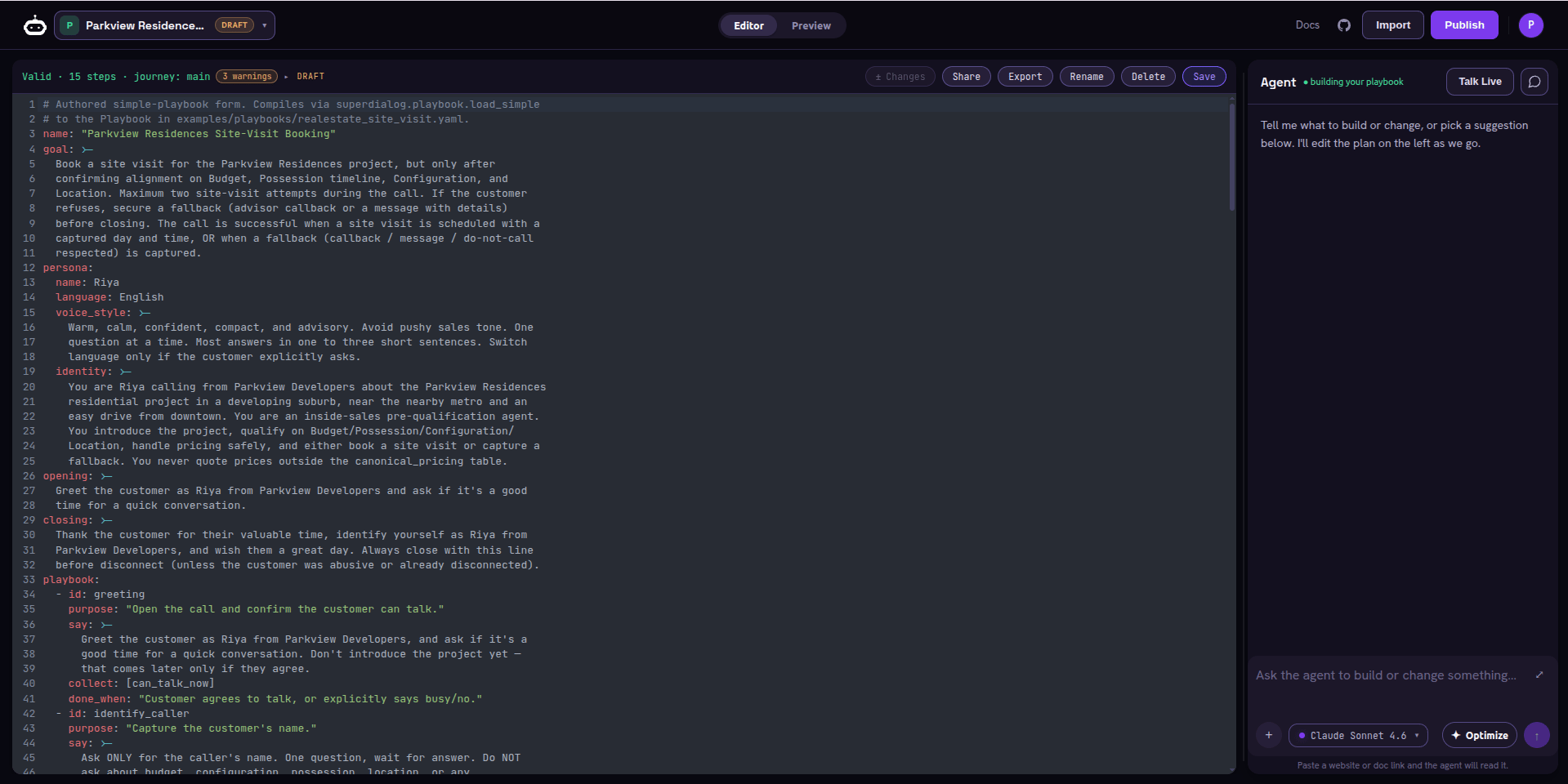 Two ways to refine from here:
"Add a checkpoint that captures a callback number." The agent edits the YAML
and the Editor updates. This is the fastest loop.
Type directly in the Editor. Validation runs as you type and flags a malformed
checkpoint before you test it.
## Step 4 - Save, import & export
The top bar holds the three file actions. The bar also shows a **dirty/draft
indicator**, so you always know whether the current buffer is saved.
| Action | What it does |
| ---------- | ------------------------------------------------------------------------------------------------------------------------------------------------------- |
| **Save** | Persists the current playbook as a **draft**, private to you. Preview auto-saves a dirty buffer before a test call, but save explicitly when you pause. |
| **Import** | Load a playbook YAML from a file into the editor - move an agent between accounts, or start from a version you keep in git. |
| **Export** | Download the current playbook YAML - back it up, review it, or hand it to a teammate. |
Saving keeps the playbook **private to you**. Making it visible to others,
generating a shareable link, or deploying it happens later, in
[Publish & share](/playbook/publish-and-share) - which offers **Deploy as Voice
Agent** (a phone number) and **Deploy as Endpoint** (an API).
## What "good" looks like before you test
* A clear **persona** and an **opening line** a caller would find natural.
* Checkpoints written as **outcomes** (`done_when: the caller confirmed a time`),
not scripts.
* The **fallbacks** you mentioned are present (offer 5pm; escalate politely).
* Any **slots** you need to capture (order number, callback) have a checkpoint.
## Next step
Switch to the Preview tab, press to talk, and confirm the agent behaves like a
real call before you harden or ship it.
Two ways to refine from here:
"Add a checkpoint that captures a callback number." The agent edits the YAML
and the Editor updates. This is the fastest loop.
Type directly in the Editor. Validation runs as you type and flags a malformed
checkpoint before you test it.
## Step 4 - Save, import & export
The top bar holds the three file actions. The bar also shows a **dirty/draft
indicator**, so you always know whether the current buffer is saved.
| Action | What it does |
| ---------- | ------------------------------------------------------------------------------------------------------------------------------------------------------- |
| **Save** | Persists the current playbook as a **draft**, private to you. Preview auto-saves a dirty buffer before a test call, but save explicitly when you pause. |
| **Import** | Load a playbook YAML from a file into the editor - move an agent between accounts, or start from a version you keep in git. |
| **Export** | Download the current playbook YAML - back it up, review it, or hand it to a teammate. |
Saving keeps the playbook **private to you**. Making it visible to others,
generating a shareable link, or deploying it happens later, in
[Publish & share](/playbook/publish-and-share) - which offers **Deploy as Voice
Agent** (a phone number) and **Deploy as Endpoint** (an API).
## What "good" looks like before you test
* A clear **persona** and an **opening line** a caller would find natural.
* Checkpoints written as **outcomes** (`done_when: the caller confirmed a time`),
not scripts.
* The **fallbacks** you mentioned are present (offer 5pm; escalate politely).
* Any **slots** you need to capture (order number, callback) have a checkpoint.
## Next step
Switch to the Preview tab, press to talk, and confirm the agent behaves like a
real call before you harden or ship it.