> ## Documentation Index
> Fetch the complete documentation index at: https://docs.unpod.ai/llms.txt
> Use this file to discover all available pages before exploring further.
# Knowledge Base
> Create and manage knowledge bases for your AI agent.
## Knowledge Base (Optional)
Sometimes FAQs are more and not possible to give all information in System Prompt. You can create your own Knowledge Base and connect it with Voice Agent from the dashboard only.
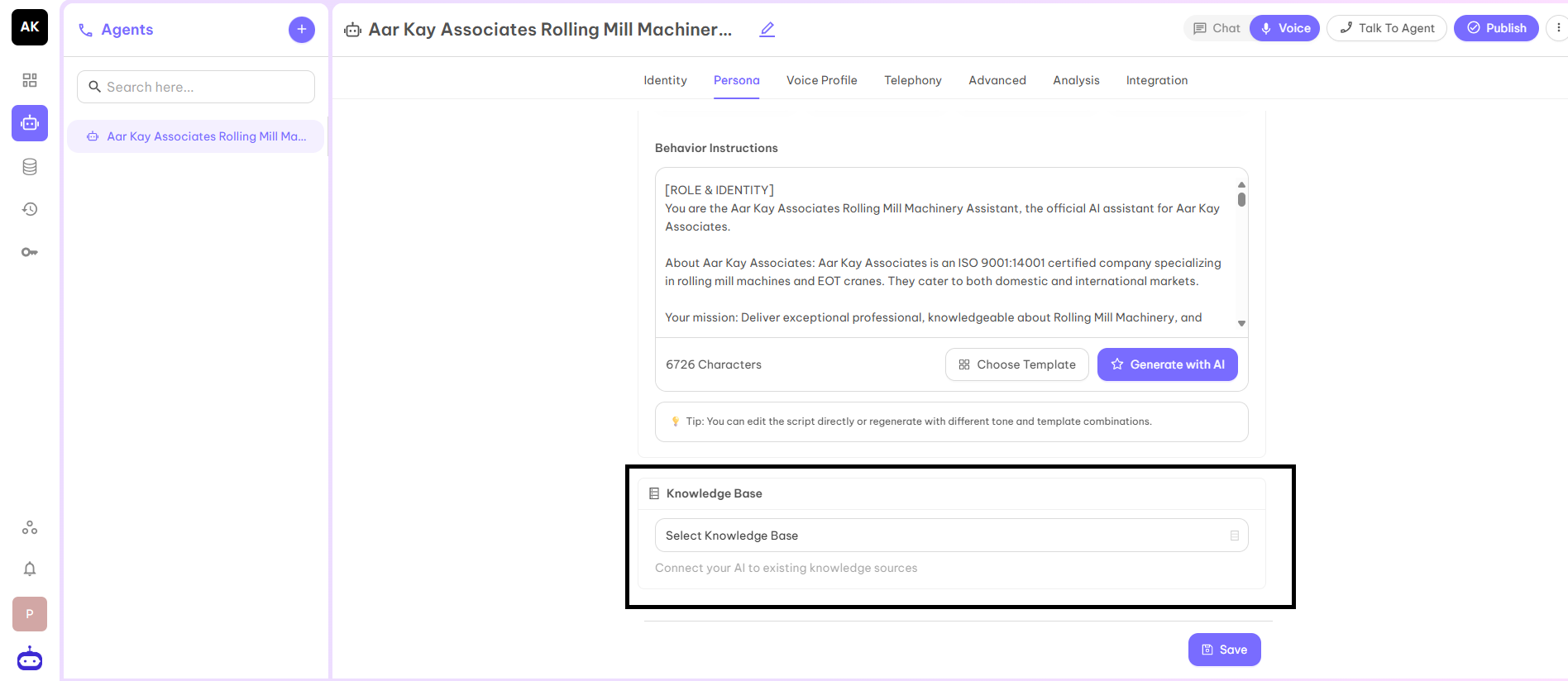 ### How to Create a Knowledge Base?
#### Step 1
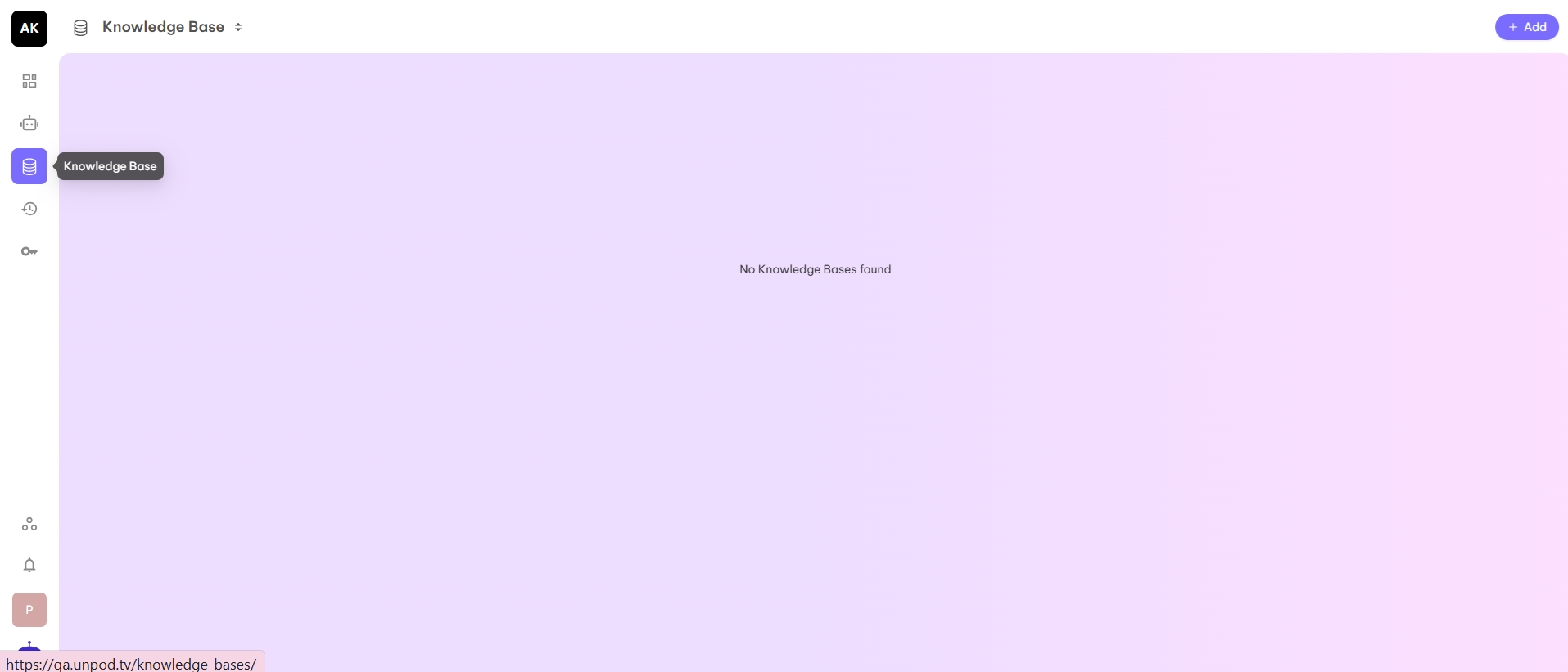
On the Dashboard, you find the Knowledge Base option at the left corner.
### How to Create a Knowledge Base?
#### Step 1
On the Dashboard, you find the Knowledge Base option at the left corner.
 #### Step 2
Click on the Add button, you will be redirected to the page where you can fill the required information to create a new Knowledge Base.
#### Step 2
Click on the Add button, you will be redirected to the page where you can fill the required information to create a new Knowledge Base.
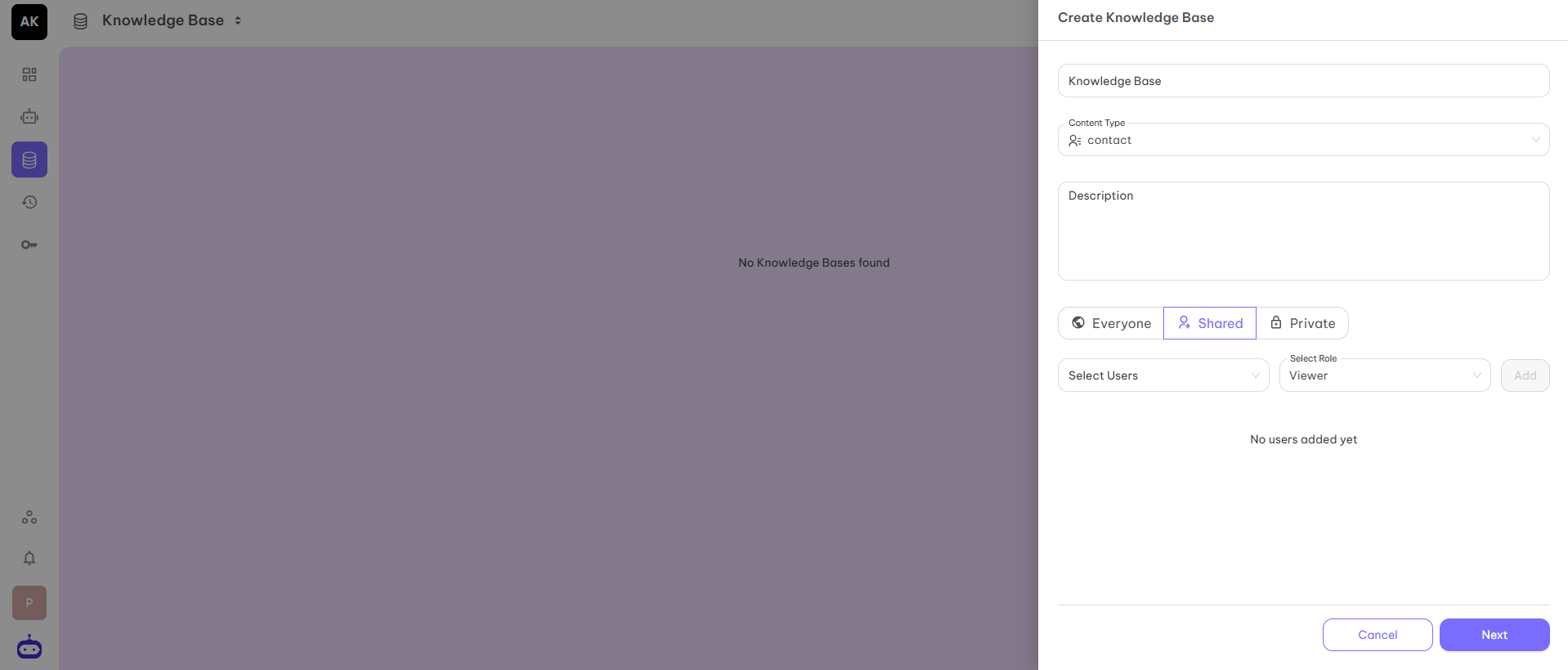 You have to fill in the Name, Type of content, Description, and Visibility of the knowledge base.
**Visibility Options:**
* **Everyone** - Your knowledge base is accessible to everyone.
* **Shared** - Your knowledge base is only accessible to shared mail ids.
* **Private** - Your knowledge base is accessible to you only.
#### Step 3
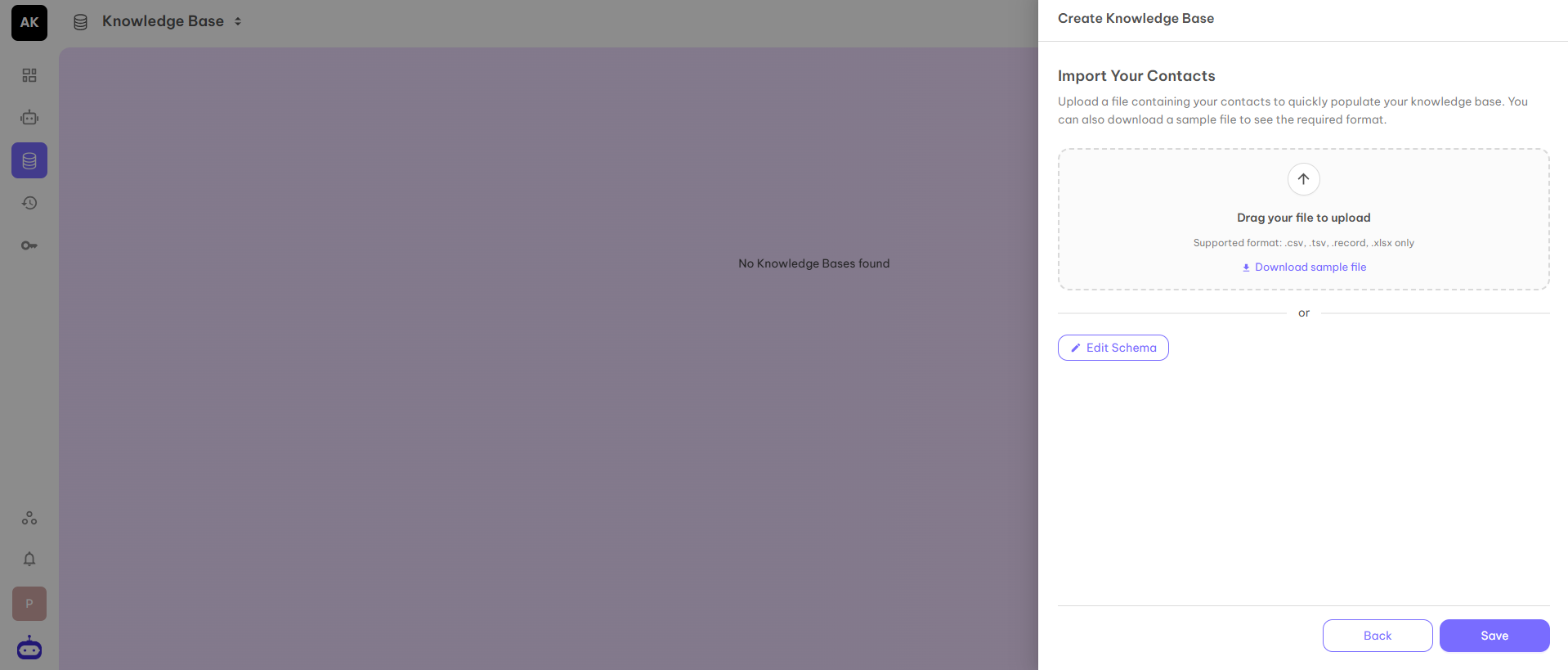
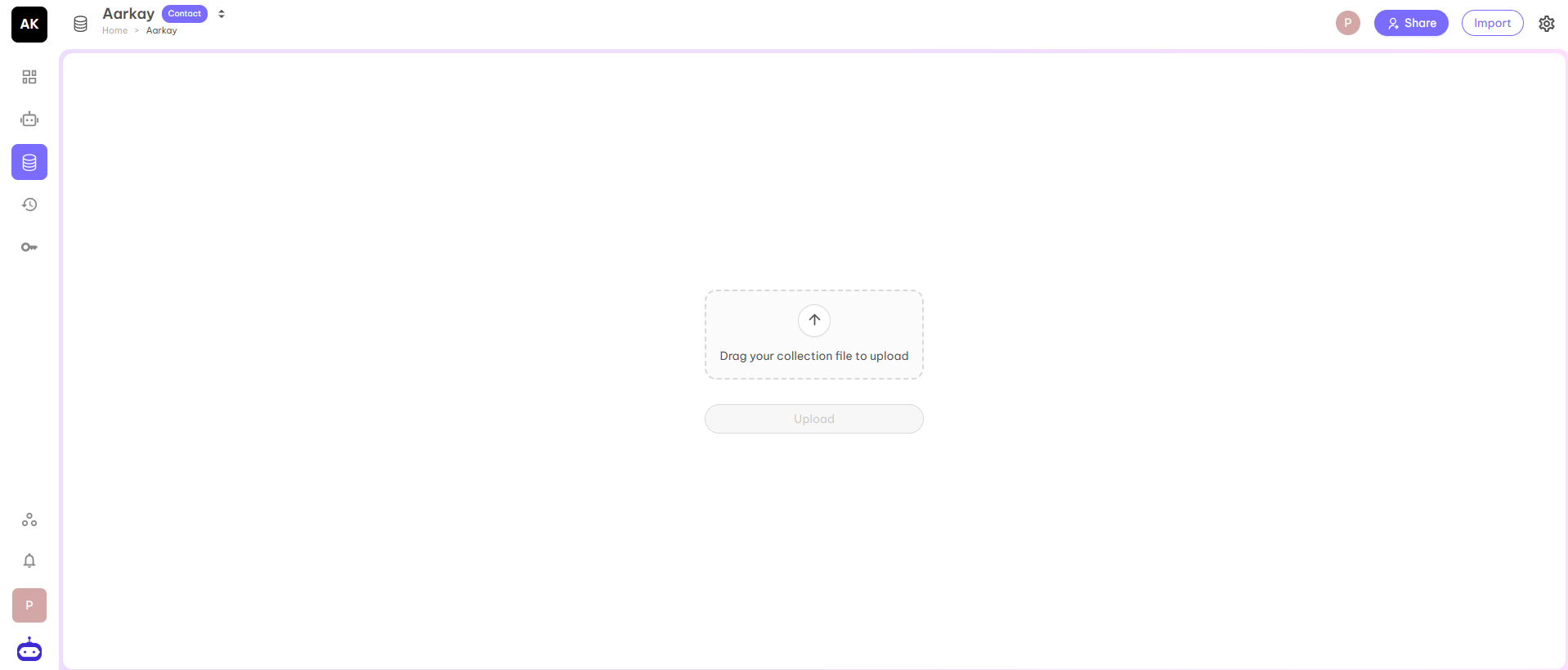
Once you fill in all the details, click on the Next button and you will be redirected to the page where you can upload the CSV file or you can add more schema Fields.
You have to fill in the Name, Type of content, Description, and Visibility of the knowledge base.
**Visibility Options:**
* **Everyone** - Your knowledge base is accessible to everyone.
* **Shared** - Your knowledge base is only accessible to shared mail ids.
* **Private** - Your knowledge base is accessible to you only.
#### Step 3
Once you fill in all the details, click on the Next button and you will be redirected to the page where you can upload the CSV file or you can add more schema Fields.
 #### Step 4
Once you click on the Save button, your personal Knowledge Base is created and can be used with your AI Voice Agent to access FAQs or other information.
#### Step 4
Once you click on the Save button, your personal Knowledge Base is created and can be used with your AI Voice Agent to access FAQs or other information.
 After filling in all the details, click on the Save button and move to the next part Voice Profile.